
You can set up your system to automatically alert some or all clients a specified number of days after an invoice is sent and remains unpaid. You can also bar them from ordering more searches once an invoice has been open for a specified length of time. You can set up global settings for these alerts and actions, as well as creating client-type-specific and client-specific settings if you wish.
Global Accounting Alerts and Bars
To set up global settings for accounting alerts and bars (which can later be overridden for certain clients and client types of your choosing), click the System Settings link in the upper right. Then, under the Clients heading, click Clients' Accounting.
You will be taken to the Client Side Accounting settings page. In Admin Module -> System Settings -> Clients' Accounting -> Check the appropriate box for: Do you want your clients to view their pricing -> and in Client Module they can view their pricing under My Account -> View Pricing.
Then access the following settings for accounting alerts and bars from this page.
-
Accounting Bar: These settings have to with when and how the system places an accounting bar on a client's system, blocking them from ordering when an invoice is too out-of-date. You have two settings here.
*NOTE* When an accounting bar is placed on the parent client, a scheduled task that runs automatically will mark all branches that are paid for by that parent client with the accounting bar as well. When the accounting bar is removed from the parent client, it does not automatically remove the accounting bar from the branches as well. The only way to remove an accounting bar from the branches is to individually remove them.
This is an update to the accounting system that notifies you when a client has an active accounting bar. This is displayed on the payment screen when marking an invoice as paid. The system will display this notification and a link to all unpaid invoices for that client. Additionally, when marking an invoice as paid, the system will allow the user to remove the accounting bar by way of a radio button "Accounting Bar On/Off".
-
-
What message would you like to appear...: The message you enter here will appear on-screen for any client who has an accounting bar from overdue invoices (or whose client profile you manually edited to assign an accounting bar) when they attempt to order a report. You can customize this message to explain why the client cannot access their account, and what they can do to rectify it.
-
How many days after an invoice is created...: This setting asks you how many days after an invoice is created and remains unpaid should the system place the accounting bar automatically on the non-paying client (which bars them from future orders with the message you added above, until you choose to lift the bar).
If you put a zero here, then there is no automatic global accounting bar (you can override this for specific clients, as explained below). If you put a number greater than zero, such as 60, then the client will be barred from ordering any time an invoice remains unpaid for at least 60 days.
Note: If a client gets an accounting bar placed on their account, you can remove it by editing their client record and unchecking Accounting Bar. Make sure you mark the past-due invoice as paid first, or else the system may re-apply the automatic accounting bar!
-
-
Approaching Accounting Bar Notice: These settings allow you to notify a client a specified amount of time before an accounting bar is to be placed, warning them that an accounting bar will be placed unless they pay their outstanding invoice. You have three settings here.
-
What subject do you want...: This field allows you to create a subject line for the notification email that will be sent to the client when they are within the specified time frame (see below) for getting their account barred.
-
What message would you like...: This field allows you to create the email body for the upcoming accounting bar notification email. That is, the previous field is the subject, and this field is the body. Together, they make up the email that is sent to clients according to the next field.
-
How many days before...: This field specifies the number of days before the accounting bar would be placed that the email is sent out warning the client. If you don't want to send such a warning email, you can type zero for this field.
For example, if you specified 60 above as the number of days an invoice can go unpaid before an accounting bar is applied, and for this setting you choose 10 as the number of days before the accounting bar would be applied that a notice will be sent, then the system effectively sends the warning email 50 days after the invoice is created and is still unpaid (60 - 10, or 10 days before the 60-day accounting bar is applied).
-
-
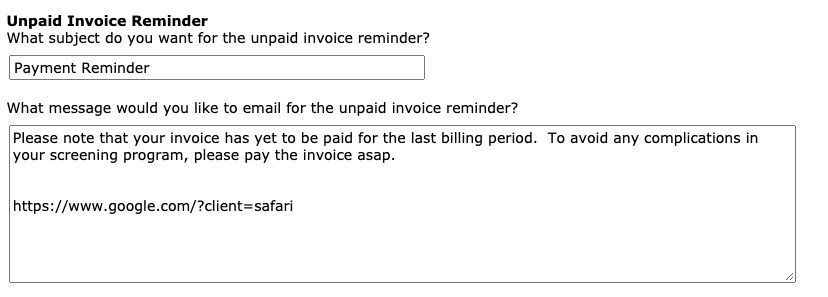
Unpaid Invoice Reminder: These settings allow you to notify a client that an invoice is still unpaid. This is very similar to the approaching accounting bar notice, except that it's usually a gentler reminder that the invoice needs to be paid. For example, you could provide such a notice 30 days after originally sending them the invoice reminding them to pay it. Then, if they still don't pay it, you can set up the accounting bar reminder and eventual accounting bar itself for later, as in the examples above.
Reminders and Accounting Bars
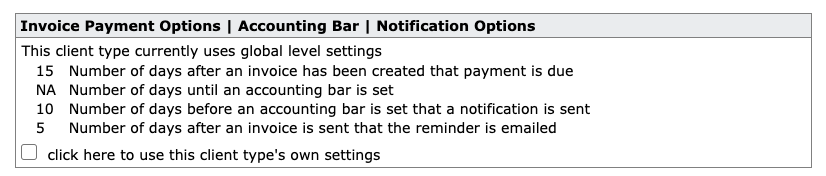
The Unpaid Invoice Reminder is configured underSystem Setting -> Client Accounting -> Unpaid Invoice Reminder. The frequency and when reminders and accounting bars go out can also be configured on the client and client type level under "Invoice Payment Options"
Client:
Client Type:
To manually send a reminder, you will need to resend the invoice. First go to the Accounting tab -> click "view client invoices"-> either enter the individual client, invoice number, etc, or choose view unpaid invoices -> from there you can either (1) click "send all invoices below to clients" or (2) go to the specific invoice -> click "send invoice" to only resend that single invoice.
-
What subject do you want...: This field allows you to create a subject line for the unpaid invoice reminder, which is sent after an invoice goes unpaid for the number of days you specify below.
-
What message would you like...: This field contains the email message body that accompanies the subject line above, reminding the recipient that an invoice is outstanding.
-
How many days after an invoice...: This field specifies the number of days after you create an invoice that the client is reminded via email that it's still outstanding. If you do not wish to send out such a reminder, enter a zero for this field.
For example, if you type in 30 for this field, and you create an invoice on the 1st of October, the system will send a reminder on the 31st of October (30 days later) if the invoice is still marked unpaid in our system.
-
Emailing Invoices: These settings affect how invoices are sent out to clients.
Note: You can email invoices out either singly or in batches by viewing them from Accounting > View Invoices; there is a link within each invoice summary to send the invoice to the client, as well as a link at the top of the viewer that can send all invoices you bring up as search results. The invoice is sent via either email or fax (or both) based on each client's invoice email and invoice fax fields. When you send an invoice, the system attaches both the summary and the detail invoices to the email or fax.
-
What email address...: This field specifies the From address of emails that are sent concerning invoices and the other accounting notification emails on this page. When someone receives an invoice via email, or another accounting notification email, it will show as being from the email address you specify here; if the person replies to the email, the reply will go to this email address as well.
-
What subject do you want for the invoice email?: This field allows you to set the subject line of the email received by a client when you send them an invoice.
-
What message... invoice email?: This field allows you to compose the body of the email that is sent with the invoice attachments. The subject above, the body you compose here, and the summary and detail invoice attachments form the entire email that is sent.
A - Automatic accounting bar set up in the System Settings/Clients' Accounting
If a client has not paid their bill in X (set by admin) amount of days, they cannot log in and a message (set by admin) will appear on the login page letting them know what you need them to know. This is a global setting.
Accounting Bar set manually in the Client Editor:
If you check this box the client cannot log in and a message will show on their login page. This message is retrieved by the system from the same settings as the automatic accounting bar. This is a client-level setting.
There is also a client-level setting to Prevent Automatic Bar:
Set Credit Limit in Client Editor:
This will allow clients to log in but will not allow them to order any searches past the amount of money they have due that is set in the credit limit field. This is a per-client setting.
In the client information editor, you will find the credit limit option.
When you enter a credit limit for a client, this is a monthly limit. This will restrict their ordering if the credit limit is being enforced. The credit is per month so if you add a search to a report from a previous month then the amount would be deducted from the current month that the order was placed. The limit is enforced at the end of the ordering process, at the point in which you would finalize the order. The system then checks the amount of the order being placed against the credit limit and the current unpaid balance. If there is insufficient credit the system will display a message informing the user of such.
Comments
0 comments
Article is closed for comments.